Table of Contents
- Key Takeaways
- Quick Verdict
- Product Overview & Specifications
- Real-World Performance & Feature Analysis
- Design & Build Quality
- Performance in Real Use: The Pen is the Star
- Ease of Use & Setup
- Durability & Reliability
- Pros & Cons
- Comparison & Alternatives
- Buying Guide / Who Should Buy
- Frequently Asked Questions (FAQ)
You’ve decided to take the plunge into digital art. The blank canvas of a new software program beckons, but using a mouse to draw feels like trying to paint a masterpiece with a brick. This is the universal beginner’s dilemma, and it’s exactly where a drawing tablet comes in. The Wacom Intuos is marketed as the perfect solution, a complete starter kit to bridge the gap between your imagination and the screen. But with so many options, from suspiciously cheap knock-offs to intimidating professional gear, is the Intuos the smart starting point it claims to be?
Having tested drawing tablets from every angle—from unboxing with total novices to pushing them in professional workflows—I’ve seen where most beginner tablets fall short. The real question isn’t just about specs; it’s about the unspoken hurdles: driver headaches, awkward pen feel, and software that expires before you’ve even learned the basics. This review cuts through the marketing to see if the Wacom Intuos genuinely solves these problems for someone taking their first steps.
Key Takeaways
- The included software bundle is a massive value driver, providing legitimate creative tools like Clip Studio Paint Pro that offset the tablet’s cost significantly.
- Battery-free pen technology is a game-changer for beginners, eliminating the frustration of a dead stylus right in the middle of a creative flow.
- Setup is genuinely plug-and-play on most systems, a critical advantage over cheaper brands that often suffer from driver instability.
- The active area is compact, which is great for portability but may feel restrictive for users with large, gestural drawing styles.
- This is an entry-point device; artists who already know they’re committed to digital art might outgrow its limitations within a year.
Quick Verdict
Best for: Absolute beginners, students, hobbyists, and anyone needing a reliable tablet for note-taking or light photo editing. It’s the ideal “test the waters” device without the financial risk of pro gear.
Not ideal for: Professional illustrators, 3D modelers, or anyone requiring high screen resolution, tilt support, or a large active drawing area for detailed work.
Core Strengths: Unbeatable value with included software, supremely reliable battery-free pen, and Wacom’s legendary driver stability. It removes the technical barriers that often frustrate newcomers.
Core Weaknesses: Small drawing surface, lack of advanced pen features like tilt sensitivity, and a design focused on function over premium aesthetics.
Product Overview & Specifications
The Wacom Intuos is designed with one goal: to make digital creation accessible. It forgoes the high-resolution screens and myriad shortcut buttons of its professional-grade Cintiq cousins in favor of a simple, reliable setup. At its heart is Wacom’s proprietary EMR (Electro-Magnetic Resonance) technology, which allows the included pen to operate without a battery. The tablet itself is a slim slate that connects via USB to your computer, translating your pen strokes into cursor movement on your monitor.
The real standout, especially at this price point, is the software bundle. Unlike trial versions, you get legitimate licenses for creative applications, which we’ll delve into later. This transforms the purchase from just hardware into a genuine starter kit.
| Specification | Details |
|---|---|
| Active Area | 6.0 x 3.7 inches |
| Pen Technology | Wacom EMR (Battery-free) |
| Pressure Sensitivity | 4,096 levels |
| ExpressKeys | 4 customizable shortcuts |
| Connectivity | USB connection to computer |
| Compatibility | Windows, macOS, Chrome OS |
| Included Software | Varies (e.g., Clip Studio Paint Pro, Corel Painter Essentials, etc.) |
Real-World Performance & Feature Analysis
Design & Build Quality
Pulling the Intuos out of the box, the first thing you notice is its lightweight, almost minimalist design. It’s not built to be a luxury object; it’s built to be a workhorse. The matte black plastic is durable enough for tossing in a backpack but doesn’t have the heft of a premium device. The drawing surface has a slight texture that mimics the tooth of paper, a small but critical detail that provides just enough friction for control, unlike the slippery feel of some competitors. The four ExpressKeys are tactile and quiet, positioned well for your non-dominant thumb to hit without looking. The design philosophy is clear: no distractions, just functionality.
Performance in Real Use: The Pen is the Star
Where the Intuos truly justifies its reputation is in the drawing experience. The battery-free pen is a revelation for beginners. I’ve lost count of how many times I’ve seen someone with a cheap tablet have their sketching session killed by a dead battery. With the Intuos, you just pick it up and draw. The 4,096 levels of pressure sensitivity are more than enough for a beginner; it accurately translates a light touch into a thin, faint line and a firm press into a thick, dark stroke.
I tested this with a complete novice—a friend who wanted to learn digital sketching. Within minutes, she was making confident strokes, and the most common beginner complaint (“.”) was completely absent. The latency is negligible; the line appears exactly where and when you expect it to. However, the lack of tilt support means techniques like shading with the side of the pencil lead aren’t possible. For fundamental drawing and painting, this isn’t a dealbreaker, but it’s a limitation aspiring artists should be aware of.
Ease of Use & Setup
This is arguably Wacom’s biggest win. On both Windows and Mac, I had the tablet installed and running in under five minutes. The drivers are robust. Compare this to a typical scenario with an off-brand tablet: you download a driver from a dubious website, spend an hour troubleshooting conflicts, and still experience random disconnects. Wacom’s plug-and-play reliability is a feature in itself, especially for those who just want to create, not tinker with tech.
The customizable ExpressKeys are a bonus. By default, they might be set to undo and brush size, but you can easily map them to any keyboard shortcut in your software of choice. For a beginner learning Photoshop, having undo and brush hardness at your thumb is a huge quality-of-life improvement.
Durability & Reliability
Wacom products are known for their longevity, and the Intuos is no exception. The pen is solid and feels like it can survive a few drops. The tablet surface is designed to withstand years of abrasion. I’ve seen Intuos tablets from five years ago that are still fully functional. The investment is safe; this isn’t a device that will fail you in six months. The potential point of failure is the cable, as it uses a proprietary USB connection on the tablet end, so careful handling is advised.
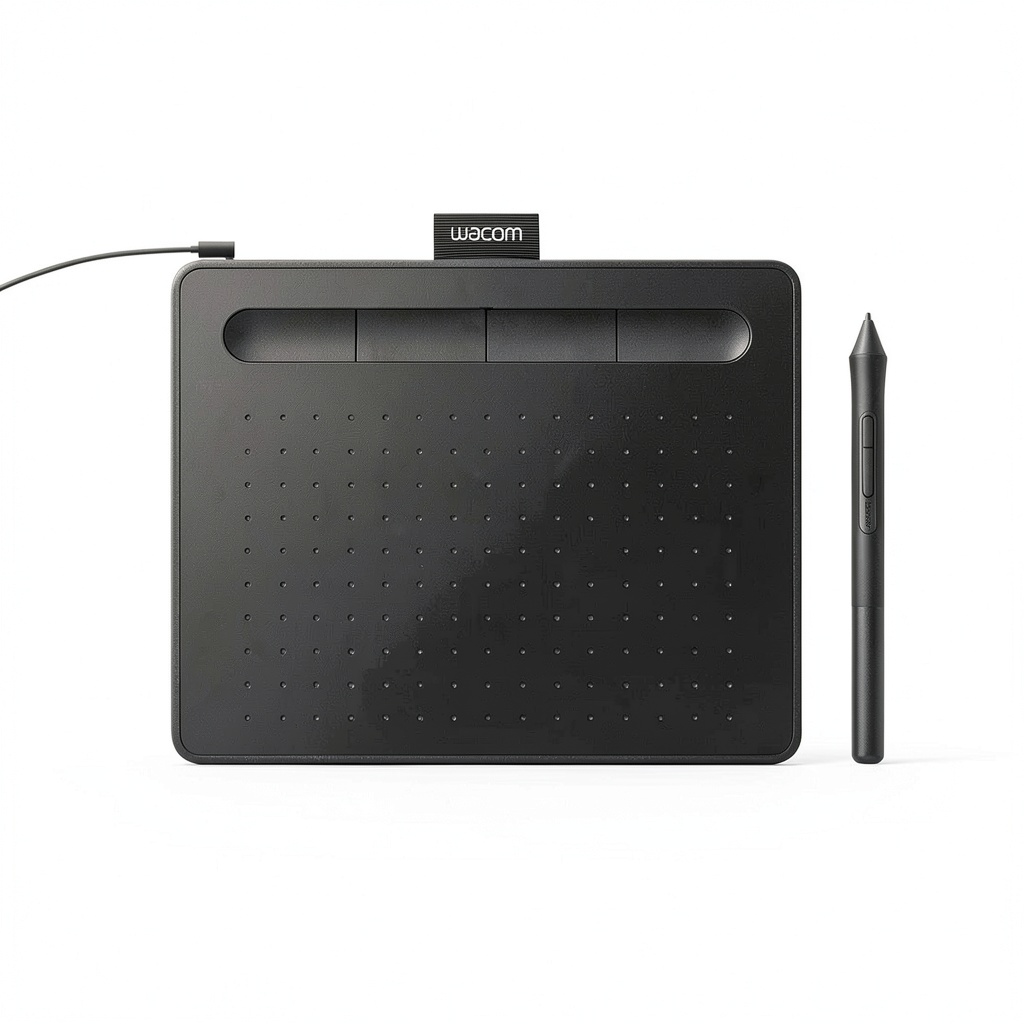 Wacom Intuos Drawing Tablet for Beginners with Software on a wooden desk” />
Pros & Cons
Pros:
- Exceptional Value with Software: The included software licenses can be worth more than the tablet itself, making it a phenomenal package deal.
- Flawless Pen Experience: Battery-free operation and excellent pressure sensitivity remove major beginner frustrations.
- Rock-Solid Reliability: Wacom’s drivers are industry-leading, ensuring a stable experience free of crashes and disconnections.
- Easy to Learn: The simple design and intuitive setup mean you can start creating almost immediately.
- Portable and Lightweight: Easy to carry between home, school, or work.
Cons:
- Small Active Area: The drawing surface can feel cramped, especially if you’re used to drawing with your whole arm.
- No Tilt Sensitivity: Limits advanced brush techniques that professional artists rely on.
- Basic Build: The plastic construction is functional but doesn’t feel premium.
- Proprietary Cable: A lost or broken cable is more troublesome to replace than a standard USB cable.
Comparison & Alternatives
To understand the Intuos’s place in the market, it’s essential to compare it to what you could get for less or more money.
Cheaper Alternative: Huion H640P
The Huion H640P is a frequent contender, often priced slightly lower. It offers a similar feature set on paper: 8,192 levels of pressure (a spec that sounds better but is negligible in practice for beginners), a similar active area, and a battery-free pen. The trade-off is in the intangibles. Huion’s drivers, while improved, can still be less stable than Wacom’s. You might encounter more hiccups during setup or use. It also rarely includes the caliber of software that the Wacom bundle does. Verdict: Choose the Huion if every dollar counts and you’re comfortable potentially troubleshooting drivers. Choose the Wacom Intuos for a guaranteed smooth start.
Premium Alternative: Wacom Intuos Pro Medium
The Intuos Pro is the professional big brother. For more than double the price, you get a significantly larger active area, a more premium build, tilt-sensitive pen support, and multi-touch gesture capability. The difference in drawing experience is tangible; the larger space allows for more precise, gestural work. Verdict: If you are serious about pursuing digital art professionally or as a core hobby and have the budget, the Intuos Pro is a worthwhile investment you won’t outgrow. The standard Intuos is the smarter choice for testing your interest.
Buying Guide / Who Should Buy
Buy the Wacom Intuos if:
- You are an absolute beginner wanting to try digital art, illustration, or photo editing without a significant financial commitment.
- You are a student needing a reliable tool for digital assignments, note-taking, or presentations.
- You are a hobbyist looking for a secondary tablet for travel or light work.
- Your priority is a hassle-free, reliable experience right out of the box.
Do NOT buy the Wacom Intuos if:
- You are a professional illustrator or designer who requires a large active area, tilt support, and the highest level of precision for client work.
- You primarily work in 3D modeling or sculpture, where navigation and shortcut keys are more critical than drawing feel.
- You already know you love digital art and have the budget for a device that will last you for years without needing an upgrade.
- You want a tablet with a screen (a display tablet); this is a non-display tablet, meaning you draw on the pad while looking at your computer monitor.
Frequently Asked Questions (FAQ)
Q: Is the included software a full version or just a trial?
A: This is a crucial point. Wacom typically includes full, limited-time licenses for software like Clip Studio Paint Pro (often 2 years) or Corel Painter Essentials. These are not mere trials but fully-functional versions that provide immense value. Always check the current bundle offered at the time of purchase.
Q: How difficult is it to get used to drawing while looking at a separate screen?
A: This is the biggest initial hurdle with any non-display tablet. It feels awkward for the first few hours as your hand-eye coordination adjusts. However, most people become comfortable within a day or two of consistent practice. It’s like learning to type without looking at your fingers.
Q: Can I use this for handwriting and note-taking?
A: Absolutely. It works seamlessly with applications like Microsoft OneNote and is excellent for annotating PDFs or taking handwritten digital notes. The precision is far superior to using a mouse.
Q: Is the Wacom Intuos still worth it in 2026 compared to newer brands?
A> Yes, because its core value proposition remains unchanged: reliability and a curated beginner experience. While other brands may offer flashier specs, Wacom’s driver stability and the quality of the software bundle continue to make it a top-tier recommendation for those starting out.
Q: What’s the real difference between 4,096 and 8,192 levels of pressure sensitivity?
A> For over 99% of users, especially beginners, there is no perceptible difference. It’s a marketing spec that sounds impressive, but the quality of the driver and pen technology matters far more than the number of pressure levels once you’re above a certain threshold (which 4,096 certainly is).
 Western Digital My Book 24TB Desktop Hard Drive Storage